Ubuntu, CentOS, Debian 및 Windows에 Docker를 설치하는 방법
운영 체제별 Docker 설치 가이드
본 가이드는 선호하는 운영 체제(OS)에 Docker를 설치하는 과정을 단계별로 안내합니다.
Docker는 애플리케이션을 빌드, 테스트, 배포 및 관리하는 데 사용되는 오픈 소스 프로젝트입니다. Docker는 자족적인 휴대용 컨테이너를 활용하여 이러한 작업을 수행합니다. 컨테이너 이미지는 일반적으로 애플리케이션 실행에 필요한 모든 리소스를 포함합니다.
오늘날 Docker는 다양한 환경에서 애플리케이션을 컨테이너 형태로 배포하고 관리하는 데 필수적인 도구로 자리매김했습니다. Docker 기술 덕분에 하드웨어나 운영 체제에 상관없이 여러 컴퓨터에서 애플리케이션과 서비스를 원활하게 실행할 수 있습니다. Docker가 설치되어 있다면, 다른 컴퓨터 시스템에서도 동일한 이미지를 문제없이 구동할 수 있습니다. Docker 이미지의 대표적인 예로는 Nginx, MariaDB, WordPress 등이 있습니다.
Docker는 기존의 가상 머신(VM)과는 차별화되는 기술입니다.
이 튜토리얼에서는 Ubuntu, Debian, CentOS 및 Windows와 같은 다양한 운영 체제에 Docker를 설치하는 방법을 자세히 알아봅니다.
대부분의 경우 설치 단계는 비슷하지만, 운영 체제 버전별로 약간의 차이가 있을 수 있습니다.
Docker 설치 방법
Docker 설치 방법은 크게 세 가지로 나눌 수 있으며, 설치 환경 및 조건에 따라 적합한 방법을 선택할 수 있습니다.
- Docker 리포지토리 사용: 온라인 환경에서 설치 및 업그레이드를 간편하게 처리할 수 있는 권장 방법입니다.
- 수동 다운로드 및 설치: 인터넷 연결이 없는 오프라인 환경에서 유용합니다.
- 자동화 스크립트 사용: 개발 및 테스트 환경에 적합합니다.
본 가이드에서는 Docker 리포지토리를 활용한 설치 방법을 설명합니다. 공식 Docker 리포지토리에서 Docker 도구를 설치하고 업데이트하는 방법을 배우게 됩니다. 운영 체제 리포지토리에서 파일을 다운로드할 수도 있지만, 공식 Docker 소스를 사용하는 것이 최신 버전을 보장하는 가장 좋은 방법입니다.
Ubuntu에 Docker 설치하기
이 가이드에서는 Ubuntu 18.04 버전을 기준으로 설명합니다.
사전 준비 사항
1단계: 로컬 데이터베이스 업데이트
설치에 앞서, 패키지 목록을 최신 상태로 업데이트합니다.
sudo apt update
2단계: HTTPS 지원 종속성 설치
HTTPS를 통해 파일을 전송하기 위한 패키지를 설치합니다.
sudo apt install apt-transport-https ca-certificates curl software-properties-common
각 명령의 역할은 다음과 같습니다:
- apt-transport-https: apt가 HTTPS 프로토콜을 통해 파일 및 데이터를 전송할 수 있도록 합니다.
- ca-certificates: 컴퓨터 또는 브라우저가 보안 인증서를 확인할 수 있도록 합니다.
- curl: 파일 전송 도구입니다.
- software-properties-common: 소프트웨어 관리 스크립트를 추가합니다.
3단계: Docker GPG 키 추가
설치 파일의 무결성을 확인하기 위해 GPG 키를 추가합니다.
curl -fsSL https://download.docker.com/linux/ubuntu/gpg | sudo apt-key add –
4단계: Docker 리포지토리 추가
apt 소스에 Docker 리포지토리를 추가합니다.
sudo add-apt-repository "deb [arch=amd64] https://download.docker.com/linux/ubuntu bionic stable"
5단계: 저장소 업데이트
추가한 리포지토리의 Docker 패키지를 포함하도록 데이터베이스를 업데이트합니다.
sudo apt update
공식 Docker 리포지토리에서 설치를 진행하고 있는지 확인하려면 다음 명령을 실행합니다.
apt-cache policy docker-ce
다음과 비슷한 결과가 출력되어야 합니다.
apt-cache policy docker-ce 출력 예시:
docker-ce:
  Installed: (none)
  Candidate: 5:19.03.5~3-0~ubuntu-bionic
  Version table:
 5:19.03.5~3-0~ubuntu-bionic 500
500 https://download.docker.com/linux/ubuntu bionic/stable amd64 Packages
 5:19.03.4~3-0~ubuntu-bionic 500
500 https://download.docker.com/linux/ubuntu bionic/stable amd64 Packages
 5:19.03.3~3-0~ubuntu-bionic 500
출력 결과, docker-ce가 아직 설치되지 않았음을 확인할 수 있습니다. 또한, 운영 체제 및 Docker 버전 번호 정보를 확인할 수 있습니다. 버전 번호는 설치 시점에 따라 다를 수 있습니다.
6단계: 최신 버전의 Docker 설치
Docker 설치를 진행합니다.
sudo apt install docker-ce
Docker 설치가 완료되면 데몬이 시작되고 시스템 부팅 시 자동으로 실행되도록 설정됩니다. Docker가 정상적으로 실행 중인지 확인하려면 다음 명령을 사용합니다.
sudo systemctl status docker
성공적으로 설치 및 실행되었다면, 다음과 비슷한 출력이 표시됩니다.
    $ sudo systemctl status docker

● docker.service - Docker Application Container Engine
   Loaded: loaded (/lib/systemd/system/docker.service; enabled; vendor preset: e
   Active: active (running) since Sat 2019-12-14 07:46:40 UTC; 50s ago
 Docs: https://docs.docker.com
 Main PID: 2071 (dockerd)
Tasks: 8
   CGroup: /system.slice/docker.service
   └─2071 /usr/bin/dockerd -H fd:// --containerd=/run/containerd/contain
출력 결과는 Docker 설치가 성공적으로 완료되었고 활성화되어 실행 중임을 나타냅니다.
CentOS에 Docker 설치하기
사전 준비 사항
- 안정적인 버전의 CentOS 7
- sudo 권한이 있는 사용자
공식 Docker 리포지토리에서 최신 버전의 Docker 설치 패키지를 사용하는 것이 가장 좋습니다.
1단계: 패키지 데이터베이스 업데이트
패키지 데이터베이스를 업데이트합니다.
sudo yum update
2단계: Docker 저장소 추가 및 설치
공식 Docker 저장소를 추가하고 Docker를 설치합니다.
curl -fsSL https://get.docker.com/ | sh
3단계: Docker 시작 및 버전 확인
Docker 데몬을 시작하고 실행 여부를 확인합니다.
sudo systemctl start docker
sudo systemctl status docker
다음과 유사한 출력이 표시되어야 합니다.
docker.service - Docker Application Container Engine
   Loaded: loaded (/usr/lib/systemd/system/docker.service; disabled; vendor preset: disabled)
   Active: active (running) since Mon 2019-12-09 09:54:50 UTC; 7s ago
 Docs: https://docs.docker.com
 Main PID: 9194 (dockerd)
Tasks: 8
   Memory: 44.0M
   CGroup: /system.slice/docker.service
   └─9194 /usr/bin/dockerd -H fd:// --containerd=/run/containerd/cont...
Debian에 Docker 설치하기
최신 버전의 Docker를 설치하려면 공식 Docker 저장소를 이용하는 것이 좋습니다.
사전 준비 사항
1단계: 시스템 업데이트
먼저, 설치된 패키지 목록을 업데이트합니다.
sudo apt update
2단계: HTTPS 지원 패키지 설치
apt가 HTTPS를 통해 동작하는 데 필요한 패키지를 설치합니다.
sudo apt install apt-transport-https ca-certificates curl gnupg2 software-properties-common
3단계: GPG 키 추가
Docker의 GPG 키를 시스템에 추가합니다. 이 키는 다운로드의 유효성을 확인하는 데 사용됩니다.
curl -fsSL https://download.docker.com/linux/debian/gpg | sudo apt-key add -
4단계: Docker 리포지토리 추가
apt 소스에 Docker 리포지토리를 추가합니다.
sudo add-apt-repository "deb [arch=amd64] https://download.docker.com/linux/debian $(lsb_release -cs) stable"
5단계: 패키지 데이터베이스 업데이트
Docker 패키지를 포함하도록 패키지 데이터베이스를 업데이트합니다.
sudo apt update
6단계: 설치 소스 확인
Docker가 공식 저장소에서 설치되는지 확인합니다.
apt-cache policy docker-ce
다음과 유사한 결과가 출력됩니다. 버전 번호는 다를 수 있습니다.
  Installed: (none)
  Candidate: 5:19.03.5~3-0~debian-stretch
  Version table:
 5:19.03.5~3-0~debian-stretch 500
500 https://download.docker.com/linux/debian stretch/stable amd64 Packages
 5:19.03.4~3-0~debian-stretch 500
500 https://download.docker.com/linux/debian stretch/stable amd64 Packages
 5:19.03.3~3-0~debian-stretch 500
500 https://download.docker.com/linux/debian stretch/stable amd64 Packages
 5:19.03.2~3-0~debian-stretch 500
500 https://download.docker.com/linux/debian stretch/stable amd64 Packages
..
..
..
17.03.1~ce-0~debian-stretch 500
500 https://download.docker.com/linux/debian stretch/stable amd64 Packages
 17.03.0~ce-0~debian-stretch 500
500 https://download.docker.com/linux/debian stretch/stable amd64 Packages
docker-ce가 아직 설치되지 않았으며, 설치 소스가 Debian 9(stretch)용 공식 Docker 리포지토리임을 확인할 수 있습니다.
7단계: Docker 설치
Docker를 설치합니다.
sudo apt install docker-ce
Docker가 설치되고 엔진이 시작되며, 부팅 시 자동으로 실행되도록 설정됩니다. 설치가 완료되면 Docker가 정상적으로 실행 중인지 확인합니다.
sudo systemctl status docker
정상적으로 설치되었다면, 서비스가 활성 상태이며 실행 중이라는 메시지가 출력됩니다.
출력 예시:
● docker.service - Docker Application Container Engine
   Loaded: loaded (/lib/systemd/system/docker.service; enabled; vendor preset: e
   Active: active (running) since Mon 2019-12-09 11:48:32 UTC; 41s ago
 Docs: https://docs.docker.com
 Main PID: 17486 (dockerd)
   CGroup: /system.slice/docker.service
   └─17486 /usr/bin/dockerd -H fd:// --containerd=/run/containerd/contain
Windows에 Docker 설치하기
Windows Server 2016에 Docker Enterprise Edition을 설치하는 방법을 살펴봅니다.
1단계: Docker Powershell 모듈 설치
관리자 권한으로 Windows PowerShell 명령 프롬프트를 열고 DockerMsftProvider 모듈을 설치합니다. 이 모듈은 Docker 이미지 검색, 설치 및 업데이트를 지원합니다.
관리자 계정을 사용한 경우, 명령은 다음과 같이 표시됩니다.
PS C:UsersAdministrator> install-module -name DockerMsftProvider -Force
다음과 같은 출력이 나타납니다.
NuGet provider is required to continue
PowerShellGet requires NuGet provider version ‘2.8.5.201’ or newer to interact with NuGet-based repositories. The NuGet
provider must be available in ‘C:Program FilesPackageManagementProviderAssemblies’ or
‘C:UsersAdministratorAppDataLocalPackageManagementProviderAssemblies’. You can also install the NuGet provider by
running ‘Install-PackageProvider -Name NuGet -MinimumVersion 2.8.5.201 -Force’. Do you want PowerShellGet to install
and import the NuGet provider now?
[Y] Yes [N] No [S] Suspend [?] Help (default is “Y”): y
Type Y for Yes
2단계: Docker 패키지 설치
모듈이 준비되면 Docker 패키지를 설치합니다.
PS C:UsersAdministrator>Install-Package Docker –Providername DockerMsftProvider –Force
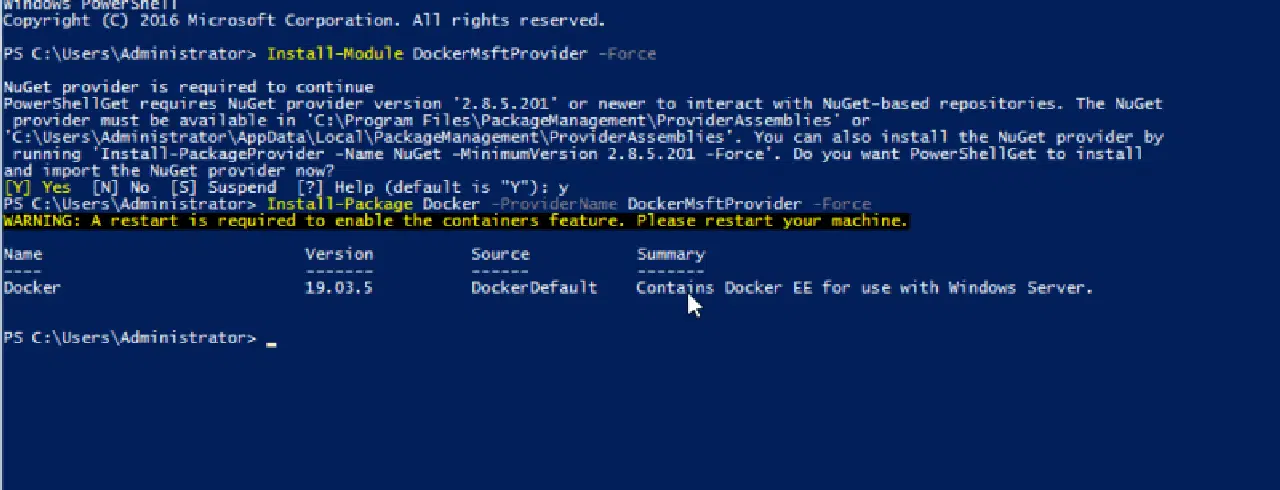
이 명령은 컴퓨터에 Docker 패키지를 설치하지만, 서비스를 시작하지는 않습니다. 컨테이너 기능을 활성화하려면 컴퓨터를 다시 시작해야 합니다.
PS C:UsersAdministrator>Restart-Computer
재시작 후 설치 및 버전 정보를 확인합니다.
PS C:UsersAdministrator>docker-version
출력 예시:
Client: Docker Engine – Enterprise
Version: 19.03.5
API version: 1.40
Go version: go1.12.12
Git commit: 2ee0c57608
Built: 11/13/2019 08:00:16
OS/Arch: windows/amd64
Experimental: false
Server: Docker Engine – Enterprise
Engine:
Version: 19.03.5
API version: 1.40 (minimum version 1.24)
Go version: go1.12.12
Git commit: 2ee0c57608
Built: 11/13/2019 07:58:51
OS/Arch: windows/amd64
Experimental: false

PS C:UsersAdministrator>
Docker 테스트를 위해 일반적인 이미지를 실행해 봅니다.
docker run hello-world:nanoserver-sac2016
성공적으로 설치 및 실행되었다면 다음과 비슷한 출력이 표시됩니다.
PS C:UsersAdministrator> docker run hello-world:nanoserver-sac2016

Hello from Docker!
This message shows that your installation appears to be working correctly.
To generate this message, Docker took the following steps:
1. The Docker client contacted the Docker daemon.
2. The Docker daemon pulled the “hello-world” image from the Docker Hub.
(windows-amd64, nanoserver-sac2016)
3. The Docker daemon created a new container from that image which runs the
executable that produces the output you are currently reading.
4. The Docker daemon streamed that output to the Docker client, which sent it
to your terminal.
To try something more ambitious, you can run a Windows Server container with:
PS C:> docker run -it mcr.microsoft.com/windows/servercore powershell
Share images, automate workflows, and more with a free Docker ID:
https://hub.docker.com/
For more examples and ideas, visit:
https://docs.docker.com/get-started/
기본적으로 Windows 컨테이너 이미지를 사용해야 합니다. Linux 컨테이너 이미지를 실행하려면 데스크톱 버전에서 사용할 수 있는 실험 모드에서 Docker Daemon을 사용해야 합니다.
결론
이 가이드를 통해 Docker를 설치하는 것이 얼마나 쉬운지 알게 되셨기를 바랍니다. 설치 후 사용법을 익히는 데 도움이 필요하거나, 비디오 교육이 필요하다면 다음 링크를 참고하십시오. 강의.