Ubuntu에서 Windows에서 Ansible을 연결하는 방법은 무엇입니까?
우분투 환경에서 앤서블을 사용하여 윈도우 서버에 연결하는 방법을 간략하게 소개합니다.
다음 단계를 진행하기 전에 두 시스템 모두에 파이썬 3.x 버전과 앤서블이 설치되어 있어야 합니다. 설치에 어려움을 겪고 있다면 아래의 관련 글들을 참조해주세요.
다음은 이 가이드에서 사용되는 두 서버의 상세 정보입니다:
- 앤서블 컨트롤러: 192.168.0.108
- 윈도우 서버: 192.168.0.102
1단계: 앤서블 윈도우 사용자 계정 생성
앤서블이 윈도우에 연결할 때 사용할 새로운 사용자 계정을 만듭니다.
- 윈도우 시스템에서 "컴퓨터 관리"를 실행하고 "로컬 사용자 및 그룹"으로 이동합니다.
- "사용자"를 마우스 오른쪽 버튼으로 클릭하고 "새 사용자"를 선택합니다.
- 계정 생성 시 "암호 만료 안 함" 옵션을 체크하고 "만들기"를 클릭합니다.
- "Administrators" 그룹을 마우스 오른쪽 버튼으로 클릭하고 "속성"을 선택합니다.
- "추가" 버튼을 클릭하고 "선택할 개체 이름 입력"란에 사용자 이름을 입력합니다.
- "이름 확인"을 클릭하고 "확인"을 눌러 설정을 완료합니다.
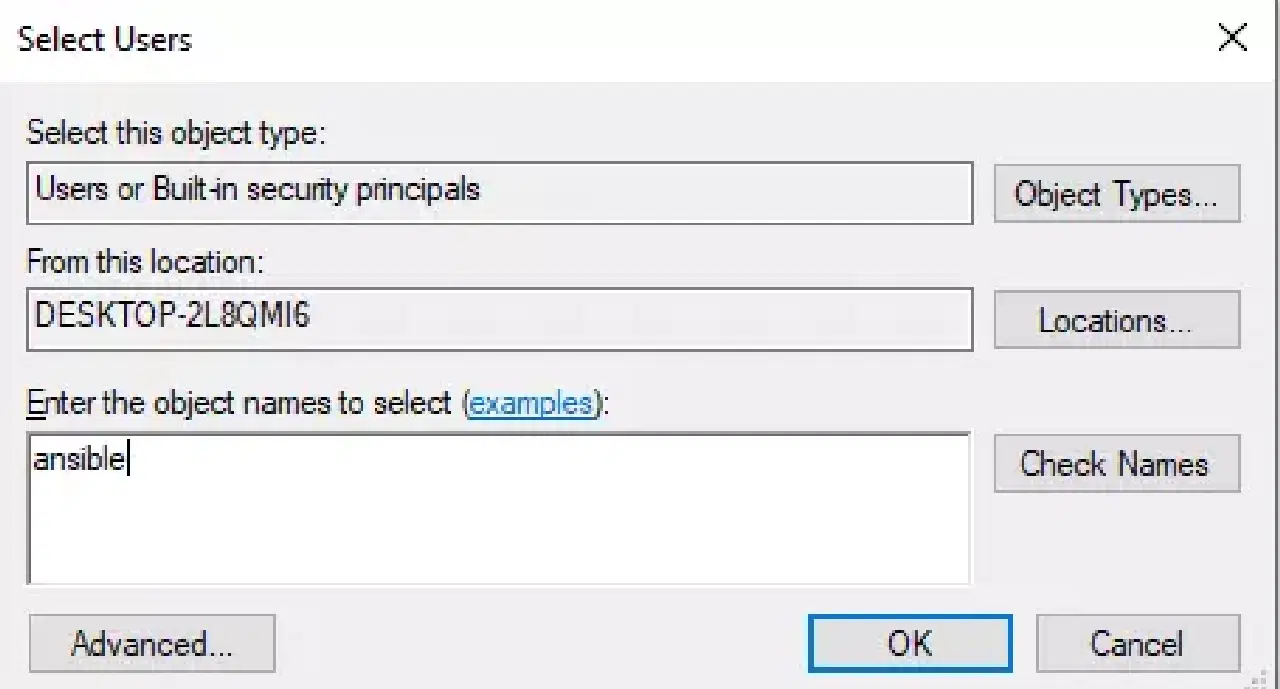
이제 윈도우 시스템에서 사용할 앤서블 사용자 계정이 준비되었습니다.
2단계: 라이브러리 설치 및 WinRM 설정
컨트롤러 시스템으로 돌아와 다음 단계를 진행하여 라이브러리를 업데이트하고 설치합니다.
    sudo apt-get update
    sudo apt-get install gcc python-dev
    sudo apt install python3-pip
WinRM은 Windows Remote Management의 약자입니다. 이를 통해 원격 윈도우 시스템에서 관리 작업을 수행할 수 있습니다. 앤서블과 윈도우 시스템 간의 통신을 위해 파이썬 클라이언트인 python3-winrm을 설치합니다.
      sudo apt-get install python3-winrm
      Reading package lists... Done
      Building dependency tree
      Reading state information... Done
      The following packages were automatically installed and are no longer required:
      gyp libc-ares2 libhttp-parser2.8 libjs-async libjs-inherits libjs-is-typedarray libjs-node-uuid libuv1 libuv1-dev node-abbrev node-ajv
      node-ansi node-ansi-color-table node-ansi-regex node-ansi-styles node-ansistyles node-aproba node-archy node-are-we-there-yet node-async

      node-validate-npm-package-license node-wcwidth.js node-which node-which-module node-wide-align node-wrap-ansi node-wrappy node-y18n
      node-yallist node-yargs node-yargs-parser nodejs nodejs-doc
      Use 'sudo apt autoremove' to remove them.
      The following additional packages will be installed:
      python3-kerberos python3-ntlm-auth python3-requests-kerberos python3-requests-ntlm python3-xmltodict
      The following NEW packages will be installed:
      python3-kerberos python3-ntlm-auth python3-requests-kerberos python3-requests-ntlm python3-winrm python3-xmltodict
      0 upgraded, 6 newly installed, 0 to remove and 231 not upgraded.
      Need to get 84.8 kB of archives.
      After this operation, 442 kB of additional disk space will be used.
      Do you want to continue? [Y/n] Y
      Get:1 http://old-releases.ubuntu.com/ubuntu cosmic/universe amd64 python3-kerberos amd64 1.1.14-1build1 [16.8 kB]
      Get:2 http://old-releases.ubuntu.com/ubuntu cosmic/universe amd64 python3-ntlm-auth all 1.1.0-1 [19.6 kB]
      Get:3 http://old-releases.ubuntu.com/ubuntu cosmic/universe amd64 python3-requests-kerberos all 0.11.0-2 [10.1 kB]
      Get:4 http://old-releases.ubuntu.com/ubuntu cosmic/universe amd64 python3-requests-ntlm all 1.1.0-1 [6,004 B]
      Get:5 http://old-releases.ubuntu.com/ubuntu cosmic/universe amd64 python3-xmltodict all 0.11.0-2 [10.6 kB]
      Get:6 http://old-releases.ubuntu.com/ubuntu cosmic/universe amd64 python3-winrm all 0.3.0-2 [21.7 kB]
      Fetched 84.8 kB in 1s (70.3 kB/s)
      Selecting previously unselected package python3-kerberos.
      (Reading database ... 244430 files and directories currently installed.)
      Preparing to unpack .../0-python3-kerberos_1.1.14-1build1_amd64.deb ...
      Unpacking python3-kerberos (1.1.14-1build1) ...
      Selecting previously unselected package python3-ntlm-auth.
      Selecting previously unselected package python3-xmltodict.
      Preparing to unpack .../4-python3-xmltodict_0.11.0-2_all.deb ...
      Unpacking python3-xmltodict (0.11.0-2) ...
      Selecting previously unselected package python3-winrm.
      Preparing to unpack .../5-python3-winrm_0.3.0-2_all.deb ...
      Unpacking python3-winrm (0.3.0-2) ...
      Setting up python3-kerberos (1.1.14-1build1) ...
      Setting up python3-winrm (0.3.0-2) ...
3단계: 앤서블 인벤토리 파일 업데이트
앤서블 호스트 파일을 편집하여 윈도우 서버의 IP 주소를 추가합니다. 이제 앤서블은 연결해야 할 윈도우 시스템을 인식하게 됩니다.
    sudo gedit /etc/ansible/hosts

    [win]
    192.168.0.102
4단계: 앤서블 그룹 변수 업데이트
윈도우 시스템에 연결하는 데 필요한 변수들을 저장할 디렉토리를 생성합니다.
    mkdir /etc/ansible/group_vars
    sudo chmod -R 777 /etc/ansible/
win.yaml 파일을 생성하고 1단계에서 만든 사용자 계정 정보와 윈도우 시스템 연결에 필요한 추가 변수를 입력합니다.
gedit /etc/ansible/group_vars/win.yaml
      ---
      ansible_user: ansible
      ansible_password: ansible
      ansible_connection: winrm
      ansible_winrm_server_cert_validation: ignore
      ansible_winrm_transport: basic
      ansible_winrm_port: 5985
      ansible_python_interpreter: C:Userskoreantech.orgAppDataLocalProgramsPythonPython37python
5단계: 윈도우 서버 구성
윈도우 파워셸을 열어 업그레이드를 진행합니다. 윈도우 시스템에는 PowerShell 3.0 이상 및 .NET Framework 4.0 이상이 설치되어 있어야 합니다.
    PS C:WINDOWSsystem32> $url = "https://raw.githubusercontent.com/jborean93/ansible-windows/master/scripts/Upgrade-PowerShell.ps1"
    PS C:WINDOWSsystem32> $file = "$env:tempUpgrade-PowerShell.ps1"
    PS C:WINDOWSsystem32> $username = "ansible"
    PS C:WINDOWSsystem32> $password = "ansible"
    PS C:WINDOWSsystem32> (New-Object -TypeName System.Net.WebClient).DownloadFile($url, $file)
    PS C:WINDOWSsystem32> Set-ExecutionPolicy -ExecutionPolicy Unrestricted -Force
    PS C:WINDOWSsystem32> &$file -Version 5.1 -Username $username -Password $password -Verbose
앤서블은 윈도우 시스템에서 WinRM을 설정하기 위한 원격 구성 스크립트를 제공합니다. PowerShell에서 이 스크립트를 실행합니다.
    PS C:WINDOWSsystem32> $url = "https://raw.githubusercontent.com/ansible/ansible/devel/examples/scripts/ConfigureRemotingForAnsible.ps1"
    PS C:WINDOWSsystem32> $file = "$env:tempConfigureRemotingForAnsible.ps1"
    PS C:WINDOWSsystem32> (New-Object -TypeName System.Net.WebClient).DownloadFile($url, $file)
    PS C:WINDOWSsystem32> powershell.exe -ExecutionPolicy ByPass -File $file
    PS C:WINDOWSsystem32> winrm enumerate winrm/config/Listener

    Listener
        Address = *
        Transport = HTTP
        Port = 5985
        Hostname
        Enabled = true
        URLPrefix = wsman

    CertificateThumbprint
    ListeningOn = 127.0.0.1, 169.254.8.240, 169.254.36.9, 169.254.102.217, 169.254.215.170, 192.168.0.102, ::1, fe80::3131:c6d7:9ef5:8f0%7, fe80::51b7:9134:550d:d7aa%22, fe80::88f1:1229:e1dd:2409%16, fe80::99cf:5796:4f8e:f5c1%15, fe80::fd77:c19d:e0f2:66d9%9

    Listener
        Address = *
        Transport = HTTPS
        Port = 5986
        Hostname = DESKTOP-2L8QMI6
        Enabled = true
        URLPrefix = wsman

    CertificateThumbprint = C83B3FC8B274D0B650F0FD647DC7AC129BBE3FA0
    ListeningOn = 127.0.0.1, 169.254.8.240, 169.254.36.9, 169.254.102.217, 169.254.215.170, 192.168.0.102, ::1, fe80::3131:c6d7:9ef5:8f0%7, fe80::51b7:9134:550d:d7aa%22, fe80::88f1:1229:e1dd:2409%16, fe80::99cf:5796:4f8e:f5c1%15, fe80::fd77:c19d:e0f2:66d9%9
HTTP 트래픽을 허용하도록 WinRM을 설정합니다.
    PS C:WINDOWSsystem32> winrm set winrm/config/service '@{AllowUnencrypted="true"}'
    Service
        RootSDDL = O:NSG:BAD:P(A;;GA;;;BA)(A;;GR;;;IU)S:P(AU;FA;GA;;;WD)(AU;SA;GXGW;;;WD)

        MaxConcurrentOperations = 4294967295
        MaxConcurrentOperationsPerUser = 1500
        EnumerationTimeoutms = 240000
        MaxConnections = 300
        MaxPacketRetrievalTimeSeconds = 120
        AllowUnencrypted = true
    Auth
        Basic = true
        Kerberos = true
        Negotiate = true
        Certificate = false
        CredSSP = false
    CbtHardeningLevel = Relaxed
    DefaultPorts
        HTTP = 5985
        HTTPS = 5986
    IPv4Filter = *
    IPv6Filter = *
    EnableCompatibilityHttpListener = false
    EnableCompatibilityHttpsListener = false
    CertificateThumbprint
    AllowRemoteAccess = true
WinRM에서 인증 방식을 기본으로 설정합니다.
    PS C:WINDOWSsystem32> winrm set winrm/config/service/auth '@{Basic="true"}'
    Auth
        Basic = true
        Kerberos = true
        Negotiate = true
        Certificate = false
        CredSSP = false
    CbtHardeningLevel = Relaxed
6단계: 윈도우 서버 연결 테스트
이제 모든 단계가 완료되었습니다. 앤서블 컨트롤러 시스템에서 win_ping 모듈을 사용하여 윈도우 서버에 연결을 시도합니다.
    ansible win -m win_ping
    192.168.0.102 | SUCCESS => {
        "changed": false,
        "ping": "pong"
    }
성공 메시지가 나타나면 앤서블과 윈도우 서버 간의 연결이 정상적으로 설정되었음을 의미합니다. 이제 우분투에서 실행되는 앤서블을 통해 윈도우 시스템을 원격으로 관리할 수 있습니다.